


Smart Switch App File Transfer
0.00.00 Reviews
App Specs
- Version
- 1.1.8
- Updated On
- License
- Free
- Downloads
- 100,000+
- Developer
- CoddeX Studio
- Categories
- Productivity
- Platform
- Android
Screenshots
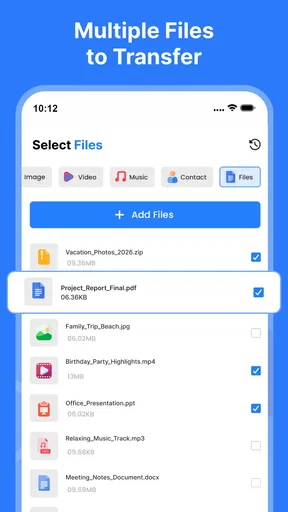
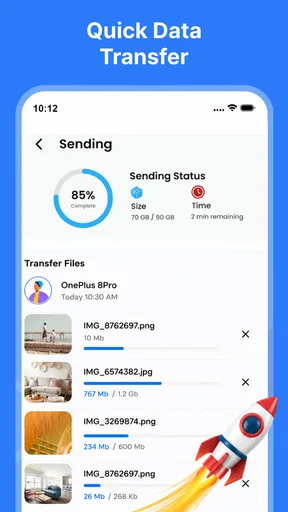
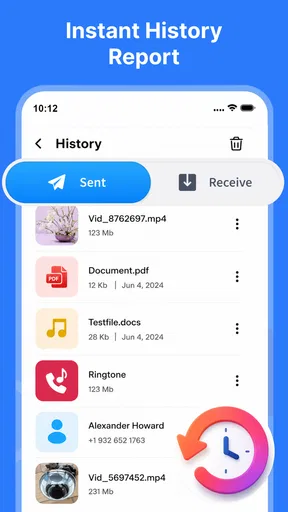
 Analysis by AppCompare
Moving to a new phone is usually less exciting than it should be. The device may be faster and cleaner, but the first evening can disappear into the job of moving photos, documents, contacts, and other personal files. I tested Smart Switch App File Transfer with that everyday problem in mind, especially in a household where more than one person may need help moving data. My impression is that it is a practical productivity app for straightforward phone-to-phone transfers, as long as you treat it as a transfer tool rather than a complete replacement for every backup service.
Smart Switch App File Transfer is made by CoddeX Studio and is available free of charge for everyone. It has passed the point of being a little-known utility, with over 100 thousand installs, and the current release is version 1.1.8. The app runs on Android 7.0 or later, while optional purchases are listed at $14.99 per item. That combination makes it easy to try before deciding whether it fits your particular move.
What using it feels like in a shared household
The most useful way to understand this app is to picture a normal family situation. One person gets a new phone, another person is trying to preserve years of pictures, and a child or older relative may need help without wanting someone to handle every part of the device. In that setting, a direct transfer utility can be less intimidating than opening several cloud services and trying to remember which account contains which file.
I found the strongest use case to be a planned move between two phones that are both available at the same time. The sender can prepare the material, the receiver can keep the new phone nearby, and the transfer can be checked before the old device is put away. This is particularly helpful for shared household photos, school documents, travel files, or a folder of recipes that one person wants to carry over without sharing an entire account.
That last distinction matters. A phone clone can move selected personal content, but it does not automatically solve account ownership, app logins, subscriptions, or conversations that are tied to a separate service. I would not use it as an excuse to merge two people’s digital lives. It works better when each person remains responsible for their own phone and chooses exactly what belongs on the replacement device.
For a quick exchange of a few pictures, the app may be more preparation than you need. The built-in sharing option on Android, a messaging app, or a cloud folder can be faster for a handful of files. Smart Switch becomes more appealing when the transfer has a clear beginning and end, involves a larger collection, or needs to happen without repeatedly selecting individual items.
Preparing both phones before starting
The smoothest transfers begin before opening the app. I would first charge both phones, remove obvious clutter from the old device, and decide whether the goal is a full move or only a carefully chosen collection. This is not just about saving time. A household transfer can become confusing when someone expects every piece of content to appear on the new phone while another person intended to copy only photos and documents.
Worth Reading Before You Choose

EA SPORTS FC Mobile 26 Is a Bigger Football Game, but It Takes Time

Flipboard Shows What News Apps Must Do Beyond the Feed

Switching to Android Auto Means Rethinking Your Driving Routine

Google Calendar Makes a Crowded Week Easier to Manage

Ludo King Makes the Most of the Minutes Between Plans

Baby Panda World Brings Quick Play to Modern Phones, but Its Game Library Feels Busy
I also recommend writing down which phone is the source and which is the destination. That sounds unnecessary, but it prevents a surprisingly common mistake when two similar devices are lying on a table. In a shared home, label them mentally by owner rather than by color or case. If a child is helping a parent, saying “copy from Dad’s old phone to Dad’s new phone” is clearer than pointing at two screens.
Keep both devices unlocked and close together during the process. Avoid beginning just before leaving the house, during a rushed school run, or while someone is waiting to use one of the phones. A transfer is easier to trust when nobody has to interrupt it halfway through. I would also keep the old phone untouched until the new one has been inspected, because moving information is not the same as proving every important item arrived correctly.
Where the app helps and where the boundary is
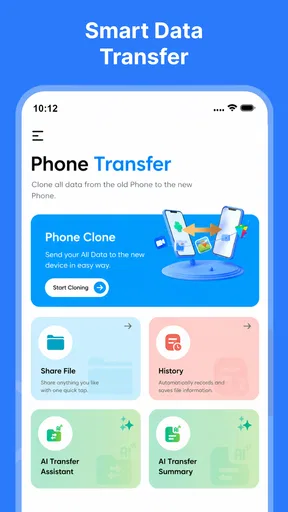
The central benefit is concentration. Instead of treating each photo, file, and piece of data as a separate task, the app gives the move a single workflow. That is useful for people who do not enjoy technical setup and for relatives who prefer a guided process over a collection of unrelated sharing tools.
Still, I would keep expectations realistic. “Phone clone” sounds broader than the practical reality of changing devices. Some information may belong to an app rather than to the phone’s ordinary files. Banking apps, authenticator tools, protected media, and services with their own sign-in rules can require separate setup. I would never wipe the old device simply because the transfer screen finished. First open the important apps, inspect the photo library, check documents, and confirm that the recipient can access what matters.
This is also why the app should not replace a proper backup strategy. A direct transfer is excellent for a move from one physical phone to another, but it is not the same as maintaining an independent copy in case the old phone is lost or damaged. If the household has irreplaceable pictures, I would use a separate backup method as well. The transfer app handles the handoff; it should not be the only safety net.
Coordinating the move without crossing account boundaries
In a shared-device environment, coordination is as important as the technical transfer. I would give each person a short role: the owner decides what should move, the helper starts the process, and the owner performs the final check. That keeps assistance from turning into accidental access to private material.
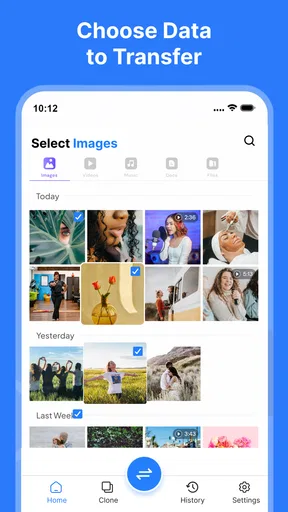
A useful habit is to create a small transfer plan in advance. Separate family pictures from personal screenshots, work files from school material, and current documents from items that are only being kept for sentimental reasons. Even if the app can handle a broad selection, organizing first makes the result easier to understand on the new phone. It also reduces the chance that one person copies a private folder simply because it was visible.
For couples or relatives sharing a tablet or spare phone, I would be especially careful about destination confusion. A transfer intended for one device should not become a convenient way to place everyone’s files on a common device. The app can support coordination, but it does not create account boundaries for you. Those boundaries still come from separate profiles, careful selection, and honest agreement about who can see what.
Another practical tip is to schedule the move when the household can leave both phones alone. People often blame a transfer tool when the real problem is that the source phone is being used for calls, navigation, photos, and messaging at the same time. A quiet period makes it easier to notice a warning, reconnect if needed, or repeat a small part of the process without pressure.
Helping children and older relatives use it safely
The everyone age rating makes the app approachable for a broad household audience, but an age label is not a substitute for supervision. A younger user may understand how to tap through a transfer while not understanding that photos, documents, or personal information are being copied to another device. I would let a child help with the physical steps only when an adult has already decided what is appropriate to share.
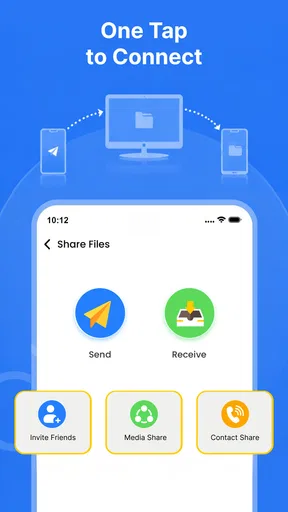
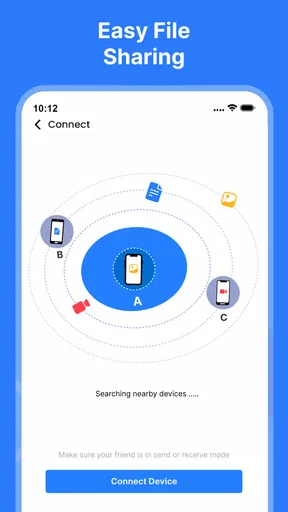
With an older relative, the main advantage is reducing the number of separate tasks. Instead of asking them to remember several accounts and export methods, I could help establish the two-phone connection and then let them review the result. The important part is to explain what is happening in ordinary language: which phone is sending, which phone is receiving, and what will be checked afterward.
Trust works both ways. A helper should not assume that being asked to move a phone means being allowed to browse everything on it. The owner should remain present for selection and verification whenever possible. Smart Switch App File Transfer can make the mechanics simpler, but it does not decide whether a particular picture, document, or folder should be shared.
I would also avoid using a child’s device as a temporary storage area for another person’s files just because it is available. That creates confusion later and can expose material to someone who did not agree to receive it. The best household workflow is owner-led, with the app used to carry out a clear decision rather than to make that decision silently.
Everyday scenarios where it earns its place
Imagine a parent replacing an aging phone before a trip. The family has a limited window to move travel documents, recent pictures, and essential files. A direct transfer app is useful because both phones can stay on the kitchen table while the owner watches the process. Afterward, the parent can check the new gallery and documents before the old phone is packed away as a backup device.
Another good example is a student moving from a borrowed phone to a personal one. The student may want photos and school files but not every item from the previous device. A selective approach is more sensible than cloning the entire phone. I would use the app as part of a tidy move, then sign into school and communication services separately rather than assuming that copied files equal a fully restored digital life.
It can also help when a household member has accumulated years of pictures but is not comfortable with computers. The app keeps the transfer centered on the phones, which may feel more familiar. I would still make a second copy of important memories afterward and inspect the destination carefully, because convenience should not remove the verification step.
How it compares with usual alternatives
The closest alternatives are usually built-in phone migration tools, cloud storage, wireless sharing, or a computer-based copy. Each has a different strength. A manufacturer’s migration assistant may be better when moving within the same phone brand, especially if it restores device settings and service-specific content. Cloud storage is better for keeping an independent copy and accessing files from several devices, but it depends on account organization and available storage.
Wireless sharing is excellent for a small batch of pictures or a single document. It becomes tedious when the job expands into a large, mixed collection. A computer gives more control and can be reassuring for careful users, but it adds cables, folders, and another device to the process. Smart Switch sits between these choices: simpler than a manual computer archive, more focused than a general cloud account, and more suitable for a substantial phone-to-phone move than sending files one at a time.
That middle position is also its main limitation. People expecting a complete system migration may prefer a manufacturer’s official tool. People wanting long-term backup should choose a dedicated backup service. People transferring only a few items should use the quickest sharing method already on their phones. I would choose this app when the main problem is moving a meaningful amount of personal content directly between two phones, not when the main problem is ongoing storage, app restoration, or cross-device synchronization.
Small habits that make the result more reliable
My first tip is to verify by category rather than by memory. Open the gallery and look at older as well as recent pictures. Check the document folders that matter. Search for a file you know is hard to replace. This catches the practical problems that a simple completion message cannot reveal.
My second tip is to transfer in a calm order when the collection is large. Start with the material that would be hardest to recreate, then handle less important items. If the process is interrupted, you will at least know that the irreplaceable content received priority. This is particularly useful in a family move where somebody may need to reclaim one of the phones before everything is finished.
My third tip is to keep the old phone available until the new phone has worked through a normal day. Make a call, open the files you need, inspect pictures, and check the services that are important to the owner. Only then should you consider resetting or giving away the old device. This habit protects against the false confidence of seeing a successful transfer screen.
A fourth useful habit is to clean the destination after the move. A direct copy can bring along duplicates, forgotten downloads, and screenshots that no longer make sense. Spending a few minutes sorting the new phone prevents the transfer from simply reproducing the old phone’s clutter. In a shared household, it also makes ownership clearer because personal material can be placed in sensible folders instead of being mixed together.
What to know about cost and suitability
The app is free to install and use as a starting point, which lowers the risk for someone who only needs it during a device change. Optional purchases are shown at $14.99 per item, so I would look carefully at any purchase screen and decide whether the extra value is relevant to the particular transfer. I would not pay automatically just because the phone move feels urgent.
For a household that changes phones rarely, the free entry point is appealing. For someone who transfers data repeatedly between many devices, the decision deserves more thought, especially if a computer workflow or an existing cloud subscription already covers the same need. The right choice depends less on the headline feature and more on whether the app saves enough effort during the specific move in front of you.
Compatibility is another practical consideration. The minimum supported Android version is 7.0, so older phones should be checked before planning the transfer. If one device cannot run the app, the household will need a different method for that move. On compatible phones, I would still update both devices where possible and keep the process simple rather than combining several transfer methods at once.
My household verdict
I see Smart Switch App File Transfer as a useful, focused helper for a very recognizable problem: getting personal files from an old Android phone onto a new one without turning the task into a long manual exercise. It is especially sensible for a family member who needs hands-on help, a household coordinating several devices, or anyone who wants a direct transfer instead of sending files individually.
I would recommend it with two conditions. First, decide what each person owns and wants to move before starting. Second, verify the new phone and keep a separate backup of anything irreplaceable. Those habits matter more than tapping through the transfer itself, because the app can move selected content but cannot judge privacy, account ownership, or the importance of a file.
My final view is positive but measured. This is not the right answer for every migration, and I would choose an official brand-specific tool for a deeper system restoration or cloud storage for ongoing backup. For a direct, household-friendly file move, however, it offers a sensible starting point. If your expectations match that role, the free app from CoddeX Studio is worth trying before you resort to a cable, a computer, or a pile of separate sharing tasks.
Pros
- Transfers contacts
- photos
- videos
- and files between devices.
- Supports wireless and wired transfer methods for added flexibility.
- Simple setup makes migration accessible for less experienced users.
- Can preserve much of your existing device data during an upgrade.
- Useful backup and restore options help protect important information.
Cons
- Best compatibility is usually limited to supported Samsung devices.
- Large transfers can take considerable time
- especially over Wi-Fi.
- Some app data
- accounts
- and DRM content may not transfer fully.
- The interface may feel cluttered when moving large amounts of data.
- Requires sufficient storage space on the receiving device.
FAQs for Smart Switch App File Transfer
What is Smart Switch App File Transfer, and what can it do?
Smart Switch App File Transfer is designed to help users move files and selected personal data between compatible devices. Depending on the version and platform, it may support photos, videos, contacts, messages, documents, and other content. Before starting, review the available transfer categories because supported data can vary between Android and iOS devices.
Can Smart Switch App File Transfer transfer data between Android and iPhone?
Cross-platform transfers may be possible, but compatibility depends on the devices, operating systems, and the specific Smart Switch version being used. Some categories, such as contacts, photos, videos, and calendars, are usually easier to move than application data or system settings. Check the app’s compatibility information before relying on it for a complete migration.
Do both devices need to be connected to the same Wi-Fi network?
The connection method depends on the transfer mode offered by the app. Some transfers use a direct wireless connection, while others may require both devices to share the same Wi-Fi network, use a cable, or connect through a computer. Keep both devices nearby, unlocked, and sufficiently charged to avoid interruptions during the process.
Is Smart Switch App File Transfer safe for personal files and private information?
The app may handle highly sensitive content, including photos, contacts, messages, and documents, so users should download it only from a trusted store or official source. Review requested permissions and avoid transferring data over unsecured networks when possible. It is also wise to create a backup before beginning, particularly when moving important or irreplaceable files.
Why might a transfer fail or take longer than expected?
Transfer speed depends on the amount and type of data, wireless signal quality, device performance, available storage, and the connection method. Large video libraries can take considerable time. Failures may occur if a device locks, loses connection, runs out of space, or uses an unsupported file format. Keep the app open and follow its troubleshooting instructions.


